Many of the existing SQL Server tools & utilities can be used with SQL Azure as well. In this post we will provide an overview and in future posts we will take a closer look into these tools & utilities.
SQLCMD
The sqlcmd utility lets you enter TSQL statements, system procedures, and script files at the command prompt, in Query Editor in sqlcmd mode, in a Windows script file, or in an operating system (cmd.exe) job step of a SQL Server Agent job.
SQL Server Management Studio
SQL Server Management Studio combines graphical tools with a number of rich script editors to provide access to SQL Server to developers and administrators. The SQL Server 2008 R2 November CTP version of SQL Server Management Studio can be used to access, configure, manage and administer SQL Azure. However previous versions of SQL Server Management Studio are not supported.
Scripts Wizard
You can use the Generate and Publish Scripts Wizard to transfer a database from a local computer to SQL Azure. The Generate and Publish Scripts Wizard creates Transact-SQL scripts for your local database and the wizard uses them to publish database objects to SQL Azure. There is a new engine-type parameter for SQL Azure. When you are scripting a database and the destination is SQL Azure, set the engine parameter to SQL Azure so that the Generate and Publish Scripts Wizard creates Transact-SQL that is compatible with SQL Azure.
SQL Server Integration Services - SSIS
You can transfer data to SQL Azure by using SQL Server 2008 Integration Services (SSIS). As of the SQL Azure October CTP and the SQL Server 2008 R2 November CTP, there have been enhancements made to enable bulk copy support.
BCP
You can transfer data to SQL Azure by using the bulk copy utility (BCP.exe). The bcp utility bulk copies data between an instance of Microsoft SQL Server and a data file in a user-specified format. The bcp utility can be used to import large numbers of new rows into SQL Server tables or to export data out of tables into data files.
SQL Server Analysis Services - SSAS
On-premise SQL Server Analysis Services can consume data that is stored in SQL Azure, however SQL Server Analysis Services itself is not supported.
SQL Server Reporting Services - SSRS
On-premise SQL Server Reporting Services can consume data that is stored in SQL Azure, however SQL Server Reporting Services is not supported.
SQL Server Management Objects - SMO
A partial set of SQL Server Management Objects (SMO) are supported by SQL Azure. If you use one that is not supported, SQL Server will throw an exception.
Showing posts with label T-SQL. Show all posts
Showing posts with label T-SQL. Show all posts
Monday, November 9, 2009


Friday, November 6, 2009
T-SQL Features Supported by SQL Azure
Transact-SQL is a language that contains commands used to administer instances of SQL Server including creating and managing all objects in an instance of SQL Server, and inserting, retrieving, modifying, and deleting all data in tables. Applications can communicate with an instance of SQL Server by sending Transact-SQL statements to the server.
Transact-SQL is an extension of the language defined in the SQL standards published by the International Standards Organization (ISO) and the American National Standards Institute (ANSI).
Microsoft SQL Azure Database supports a subset of T-SQL for SQL Server.
The support for T-SQL reference in SQL Azure can be described in three main categories:
T-SQL Features Supported or Partially supported by SQL Azure :
Microsoft SQL Azure Database supports a subset of T-SQL for SQL Server.
The support for T-SQL reference in SQL Azure can be described in three main categories:
- Transact-SQL language elements that are supported as is.
- Transact-SQL language elements that are not supported.
- Transact-SQL language elements that provide a subset of the arguments and options in their corresponding Transact-SQL elements in SQL Server 2008.
T-SQL Features Supported or Partially supported by SQL Azure :
- Constants
- Constraints
- Cursors
- Index management and rebuilding indexes
- Local temporary tables
- Reserved keywords
- Stored procedures
- Statistics management
- Transactions
- Triggers
- Tables, joins, and table variables
- Transact-SQL language elements such as
- Create/drop databases
- Create/alter/drop tables
- Create/alter/drop users and logins and so on.
- User-defined functions
- Views, including sys.synonyms view
- Common Language Runtime (CLR)
- Database file placement
- Database mirroring
- Distributed queries
- Distributed transactions
- Filegroup management
- Global temporary tables
- Spatial data and indexes
- SQL Server configuration options
- SQL Server Service Broker
- System tables
- Trace Flags Not supported
Thursday, November 5, 2009
SQL Azure Firewall
To help protect your data by default, all access to your SQL Azure server is blocked by the SQL Azure firewall; connection attempts originating from the Internet or Windows Azure will not be able to reach your SQL Azure server. In order to begin using your SQL Azure server, you must go to the SQL Azure portal and specify one or more firewall settings that enable access to your SQL Azure server. Use the firewall settings to specify which IP address ranges from the Internet are allowed, and whether or not Windows Azure applications can attempt to connect to your SQL Azure server.
Connection attempts from the Internet and Windows Azure must first pass through the SQL Azure firewall before they can reach your SQL Azure server, as shown in the following diagram.

Connecting from Windows Azure
When an application from Windows Azure attempts to connect to your SQL Azure server, the SQL Azure firewall looks for a specific firewall setting that indicates whether Windows Azure connections are allowed.
A firewall setting with starting and ending address equal to 0.0.0.0 indicates that Windows Azure connections are allowed. If the connection attempt is not allowed, the request does not reach the SQL Azure server.
Creating the First Firewall Rule
In order to connect to your SQL Azure server for the first time, the first firewall setting must be specified using the SQL Azure portal. To begin configuring the firewall, on the SQL Azure portal, click the Firewall Settings tab on the Server Information page.
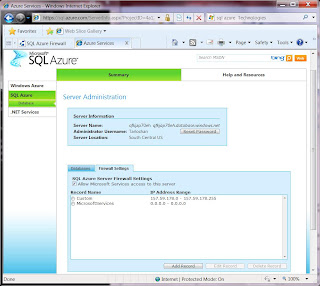

The SQL Azure portal also allows you to remove firewall settings. For more information about managing firewall settings
Connection attempts from the Internet and Windows Azure must first pass through the SQL Azure firewall before they can reach your SQL Azure server, as shown in the following diagram.

Connecting from the Internet
When a computer attempts to connect to your SQL Azure server from the Internet, the SQL Azure firewall checks the originating IP address of the request against the full set of firewall settings. If the IP address of the request is not within one of the ranges specified, the connection attempt is blocked and does not reach the SQL Azure server.Connecting from Windows Azure
When an application from Windows Azure attempts to connect to your SQL Azure server, the SQL Azure firewall looks for a specific firewall setting that indicates whether Windows Azure connections are allowed.
A firewall setting with starting and ending address equal to 0.0.0.0 indicates that Windows Azure connections are allowed. If the connection attempt is not allowed, the request does not reach the SQL Azure server.
Creating the First Firewall Rule
In order to connect to your SQL Azure server for the first time, the first firewall setting must be specified using the SQL Azure portal. To begin configuring the firewall, on the SQL Azure portal, click the Firewall Settings tab on the Server Information page.


Wednesday, November 4, 2009
Provisioning SQL Azure
The Microsoft SQL Azure provisioning process prepares and configures the hardware and software required to maintain your data at a Microsoft data center. The SQL Azure provisioning model describes the logical hierarchy of your Windows Azure Platform account, SQL Azure servers, and databases; it enables you to provision your data storage rapidly.
To use SQL Azure, you must first create a Windows Azure Platform account, which allows you to access all the services, such as Windows Azure, .NET Services, and SQL Azure. The Windows Azure Platform account is used to set up and manage your subscriptions and to bill for consumption of the Azure services.

Once the Windows Azure Platform account is created, you can use the SQL Azure portal to create one SQL Azure server. To provision additional SQL Azure servers, create additional subscriptions. The SQL Azure portal provides a user interface that you can use to provision servers and logins, and to quickly create databases.
The following diagram demonstrates the relationship between a Windows Azure Platform account, the SQL Azure servers, and databases.

As shown in the diagram, each Windows Azure Platform account can be associated with multiple SQL Azure servers (by using a different Windows Azure Platform subscription for each). Each SQL Azure server can be associated with one or more databases.
Servers
A SQL Azure server is a logical group of databases and acts as a central administrative point for multiple databases. Each SQL Azure server includes logins similar to those in instances of SQL Server on your premises.
Each SQL Azure server has a fully qualified unique domain name, which is produced during the SQL Azure provisioning process. For example servername.ctp.database.windows.net, servername refers to the name of the SQL Azure server:
Databases
Each SQL Azure server can contain multiple databases. In each database, you can create tables, views, indices, stored procedures, and other familiar database objects. In order to create a new database, you can either use the SQL Azure portal or the CREATE DATABASE (SQL Azure Database) statement (this will be covered in future blog post). The screenshot below shows the SQL Azure portal to create the database.

The provisioning process creates a master database automatically. The master database maintains a list of databases and keeps a track of logins, and which logins have permission to create databases or other logins. (This master database is equivalent to the master database in a new on-premise instance of SQL Server.) The master database also provides SQL Azure usage metrics that you can view.
Logins
During the provisioning process, SQL Azure creates a login for you that is the server-level principal of your SQL Azure server. This server-level principal is equivalent to the sa login in SQL Server. Additional SQL Azure databases and logins can then be created in the server, as needed. For more information on the sa login in an on-premise SQL Server instance.

Server-level administration for logins and databases in SQL Azure differs from an on-premise instance of SQL Server. More information, on this will be covered in future blog posts.
SQL Azure provides the same set of security principals that are available in SQL Server, such as:
Related Blog Posts
Introduction to SQL Azure
Getting Started with SQL Azure
SQL Azure Architecture Overview
How-To Access SQL Azure Data
Provisioning SQL Azure
To use SQL Azure, you must first create a Windows Azure Platform account, which allows you to access all the services, such as Windows Azure, .NET Services, and SQL Azure. The Windows Azure Platform account is used to set up and manage your subscriptions and to bill for consumption of the Azure services.

The following diagram demonstrates the relationship between a Windows Azure Platform account, the SQL Azure servers, and databases.

Servers
A SQL Azure server is a logical group of databases and acts as a central administrative point for multiple databases. Each SQL Azure server includes logins similar to those in instances of SQL Server on your premises.
Each SQL Azure server has a fully qualified unique domain name, which is produced during the SQL Azure provisioning process. For example servername.ctp.database.windows.net, servername refers to the name of the SQL Azure server:
Databases
Each SQL Azure server can contain multiple databases. In each database, you can create tables, views, indices, stored procedures, and other familiar database objects. In order to create a new database, you can either use the SQL Azure portal or the CREATE DATABASE (SQL Azure Database) statement (this will be covered in future blog post). The screenshot below shows the SQL Azure portal to create the database.

Logins
During the provisioning process, SQL Azure creates a login for you that is the server-level principal of your SQL Azure server. This server-level principal is equivalent to the sa login in SQL Server. Additional SQL Azure databases and logins can then be created in the server, as needed. For more information on the sa login in an on-premise SQL Server instance.

Server-level administration for logins and databases in SQL Azure differs from an on-premise instance of SQL Server. More information, on this will be covered in future blog posts.
SQL Azure provides the same set of security principals that are available in SQL Server, such as:
- SQL Server logins: Used to authenticate access to SQL Azure at the server level.
- Database users: Used to grant access to SQL Azure at the database level.
- Database roles: Used to group users and grant access to SQL Azure at the database level.
Related Blog Posts
Introduction to SQL Azure
Getting Started with SQL Azure
SQL Azure Architecture Overview
How-To Access SQL Azure Data
Provisioning SQL Azure
Saturday, October 31, 2009
Introduction to SQL Azure
Microsoft SQL Azure Database is a cloud-based relational database service built on SQL Server technologies. It provides a highly available, scalable, multi-tenant database service hosted by Microsoft in the cloud. SQL Azure Database helps to ease provisioning and deployment of multiple databases. Developers do not have to install, setup, patch or manage any software. High availability and fault tolerance is built-in and no physical administration is required. SQL Azure Database supports Transact-SQL(T-SQL). Customers can use existing knowledge in T-SQL development and a familiar relational data model for symmetry with existing on-premises databases. SQL Azure Database can help reduce costs by integrating with existing toolsets and providing symmetry with on-premises and cloud databases.
Uses of SQL Azure Database:
- Build scalable, custom web applications, which is especially a need for small to mid-size businesses, hobbyist, and startups
- Build packaged line-of-business applications, which is attractive to traditional, SaaS ISVs and custom developers
- Build corporate departmental applications
- Consolidate multiple data sources in the Cloud and enable secure access from multiple locations, desktop and/or devices
Benefits of SQL Azure Database:
- No need to install or patch software or other physical administration
- Automatic high availability and fault tolerance
- Simple provisioning and deployment of multiple databases
- Scale databases up or down based on business needs
Multi-tenant - Integration with SQL Server and tooling including Visual Studio
- Support for T-SQL based familiar relational database model
SQL Azure Database Features
- Relational Database Management Services (RDBMS)
- Creating, accessing and manipulating tables, views, indexes, roles, stored procedures, triggers, and functions
- Execute complex queries and joins across multiple tables
- Insert, Update, and Delete
- Constraints
- Transactions
- Temp tables
- Basic functions (aggregates, math, string, date/time)
- A subset of the existing SQL Server built-in stored procedures and system views
- Support for tracking billable metrics in real time and for historical analysis
Programmability
- Managed ADO.NET data access
- Native ODBC
- Support for PHP
Tools
- Deployment Support for running SQL configuration scripts via
- SQLCMD Provision Logical Servers and Databases through the SQL Azure Database account portal
More Information:
http://www.azure.com/
Learn more about SQL Azure on MSDN
Transact-SQL (T-SQL)
Subscribe to:
Posts (Atom)
